Smart Glance
Smart Glance is a tool provided by All On Board! that displays contextual information and available actions for the game elements the player points at.
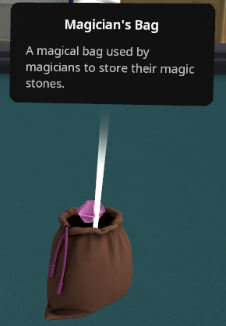
Add a simple Smart Glance
If you have already created a token, die, or pool using the editors, you will need to open the corresponding editor and edit the Name and Description fields.

If you have created cards por el editor, abre el editor y clica en en el boton que esta debajo del editor Edit Values

If you had created a deck you can change it in the
At its simplest, it shows a name and a description, both set in the Game Element Data Asset created alongside your Game Element's Blueprint. To use it, add the "Smart Glance Config" component to your Blueprint and fill in the Data Asset's fields with the text you want to show.
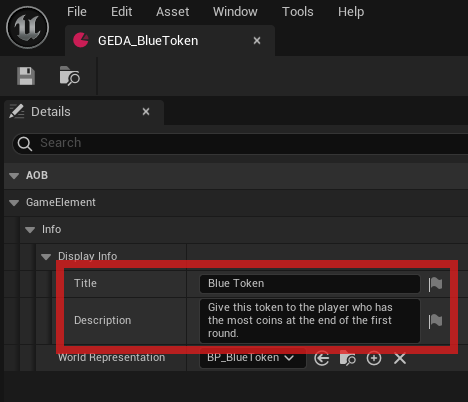
Add a custom Smart Glance
You can expand the system by making your own Smart Glance Widgets and adding new fields to the Game Element Data Assets.
Step 1 - Create a new widget
Create a Widget Blueprint of class “Smart Glance Info Widget” and implement your design. Widgets are blank canvases, so you can make anything you like, as long as they aren’t translucent.
In this example, we will copy the default widget layout, which is called WBP_SmartGlanceInfoWidget_Basic, and just change the texts’ font style and color.
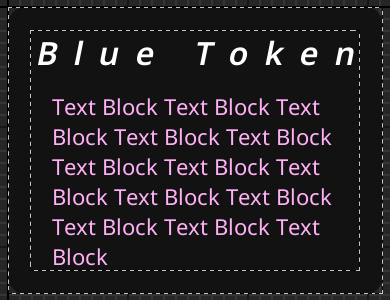
Step 2 - Link the new Widget to your Game Element
Head to the Game Element’s Blueprint and, inside the "Smart Glance Config" component, set the parameter “Smart Glance Info Widget Class” to be the Widget Blueprint you created.
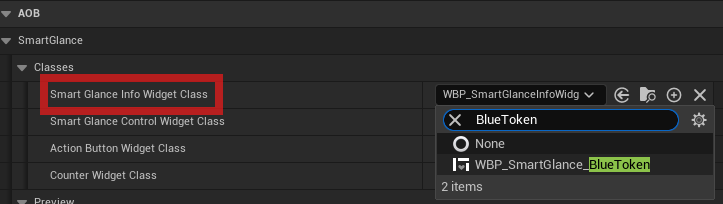
in crazy eight you have an example
How to configure
explicar por blueprint como se pone para que detetecte la info o como añadir valores y que aparezcan