Registering elements
Whether it’s a card or a miniature, all the elements you want to deploy must be registered as Game Elements.
The easiest way to do so is to press right-click in the Content Browser and look for “Blueprint Class (All On Board!)”.
Alternatively, you can press the “All On Board! Mod Kit” button on the main toolbar and look for Game Element, but you must then set a path in which to save the asset if done this way.
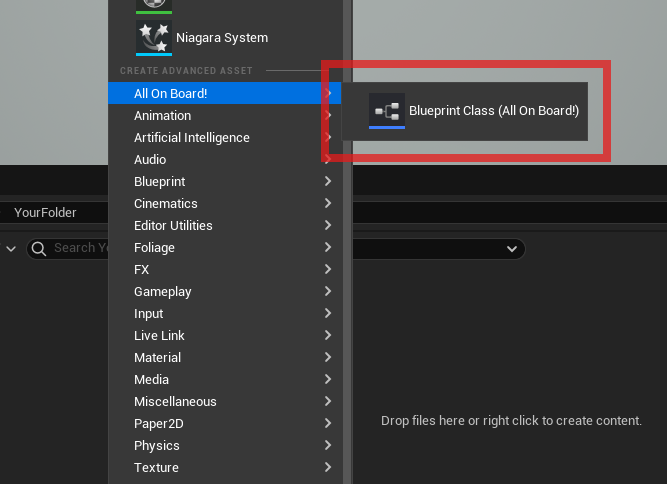
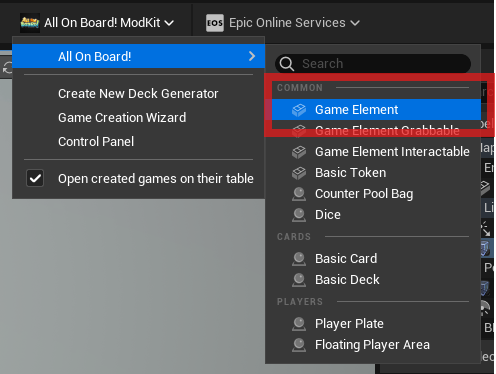
Then, choose a name for the newly created Blueprint

After that, a new dialog appears prompting you to register the Game Element in your game’s Game Element Index table. By default, it uses the Blueprint name and table to register it on, but you can change these fields if you want.
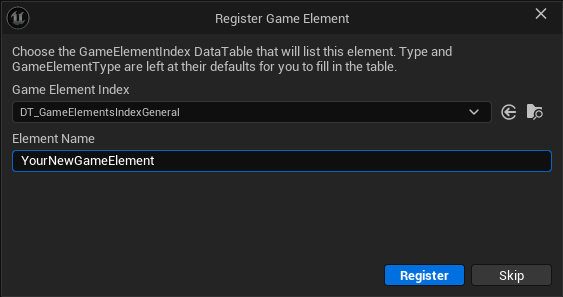
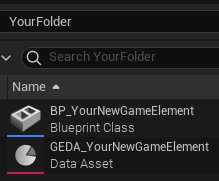
Finally, when you press Register, the element is registered on the table you pointed at, and a Game Element Data Asset is created to link the table entry with the Blueprint you created.
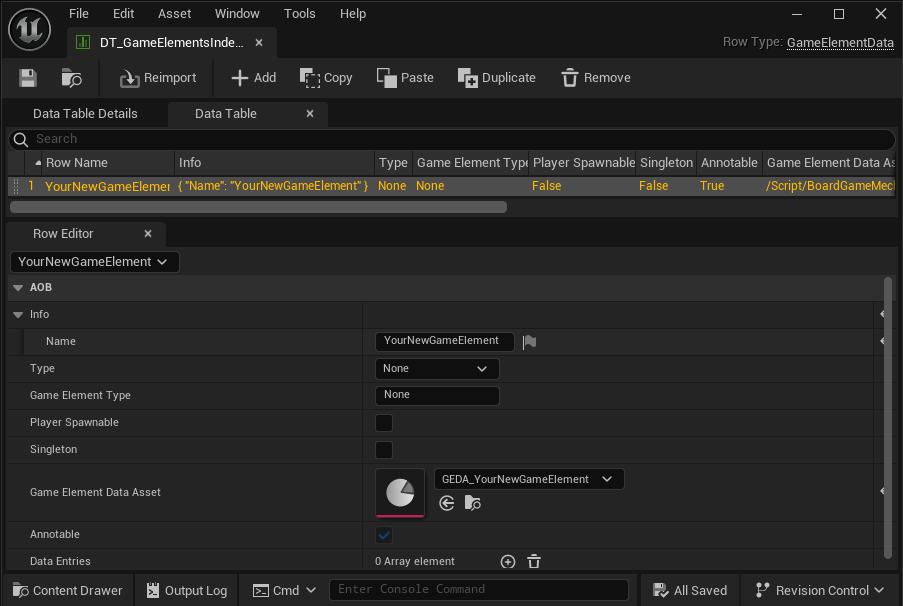
Although we have explained the easiest way to register an element, you can also register it manually. To do this, create a Blueprint and add the Game Element component if it does not already have one.
Afterwards, create and configure a Data Asset of the GameElementDataAsset or CardDataAsset class, and add a registry entry to the GameElementsIndexGeneral Data Table.