Publish from the Control Panel
This guide explain how to publish a mod using the Control Panel. This tool you can find it in the All On Board! ToolBar.
If you haven’t packaged your mod yet, follow this guide: Package a Mod
Step 1 - Log in to mod.io
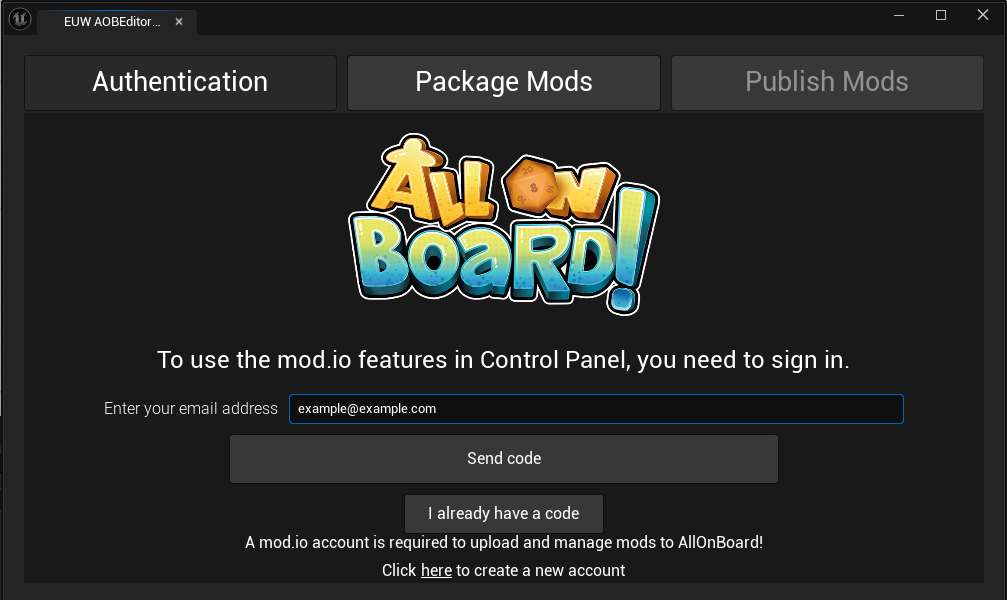
Enter the email you associated with your account, and a verification code will be sent to that email.
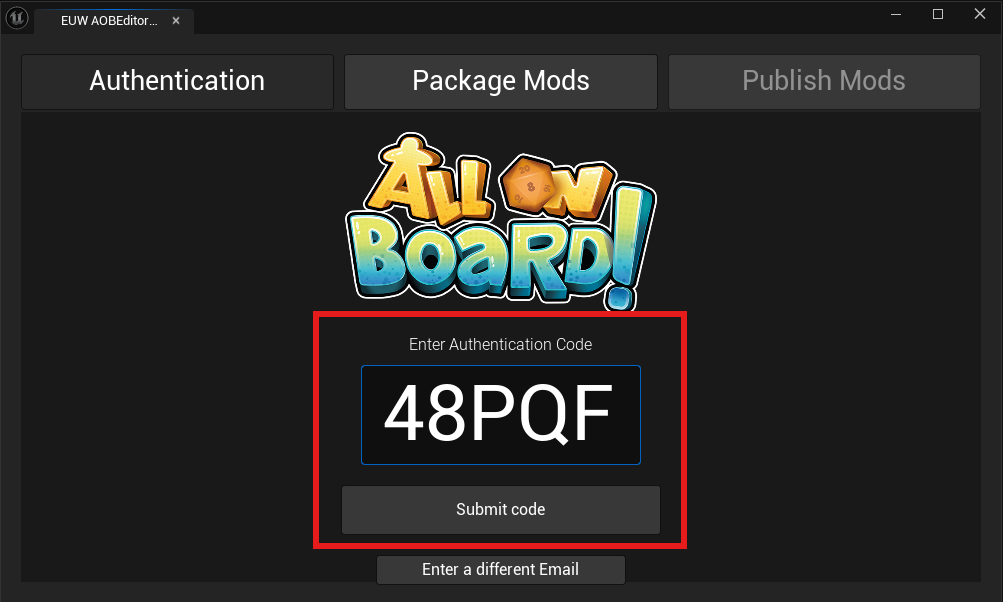
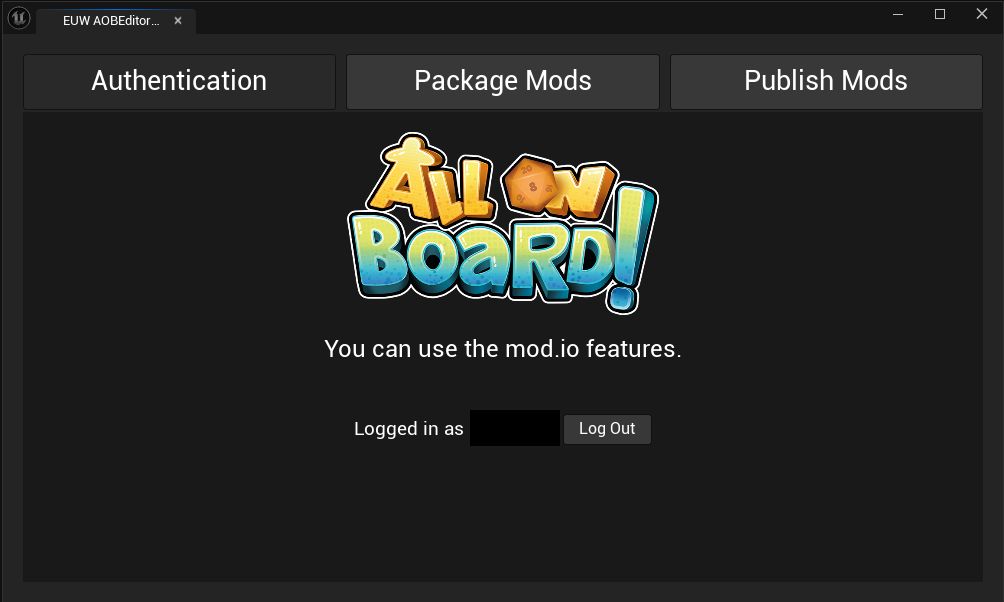
Afterwards, enter the verification code in the Mod.io interface. Once you’ve verified your code, the Publish Mod tab will be enabled.
Step 2 - Create a profile
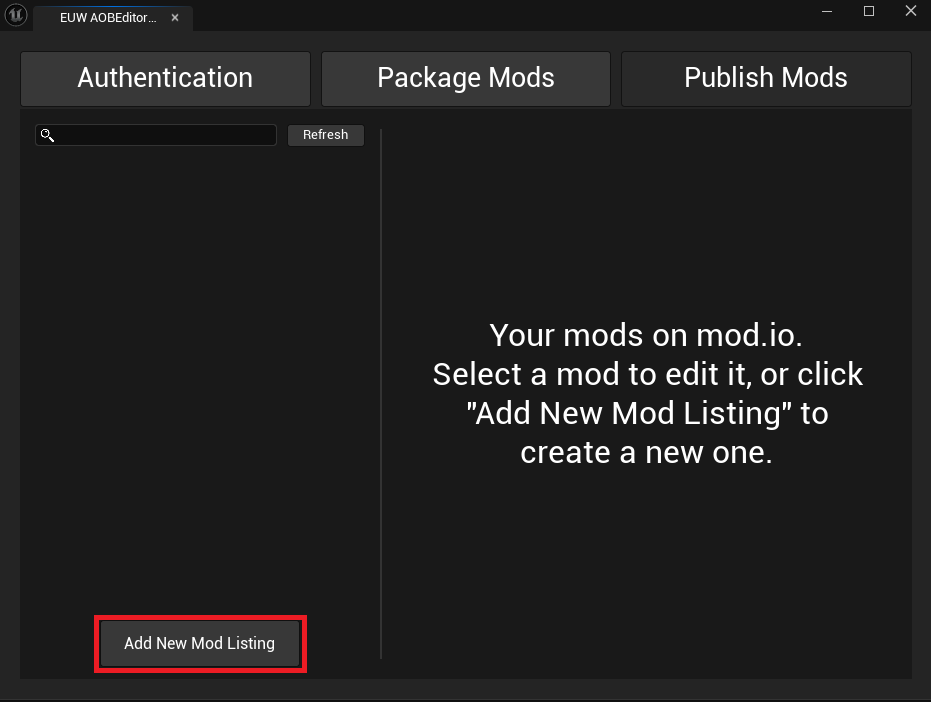
Open the Publish Mod tab and click Add a New Mod Listing. This will create the profile for your mod on mod.io.
On the right side of the Control Panel, you must fill in the following fields:
- Mod Name: The display name of your mod on mod.io.
- Mod Thumbnail Image: The cover image displayed on your mod page.
- Summary: A concise description of your mod.
- Number of Players: The number of players supported by your mod.
- Tags (Optional): The categories or genres that best describe your game.
- Visibility: Set the mod's visibility status (Public or Hidden).
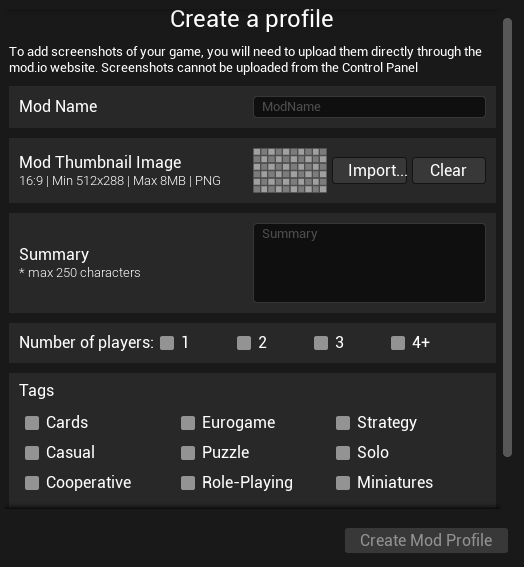
Once you have filled in all the fields, click Create Mod Profile. Once the process is complete, you can navigate to your mod page or read our guide to learn how to upload screenshots.
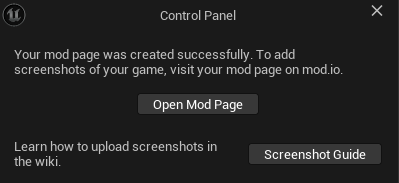
Step 3 - Add Mod File
If you already have your mod packaged, click Add Mod File. If not, go to this page to learn how to package your mod.
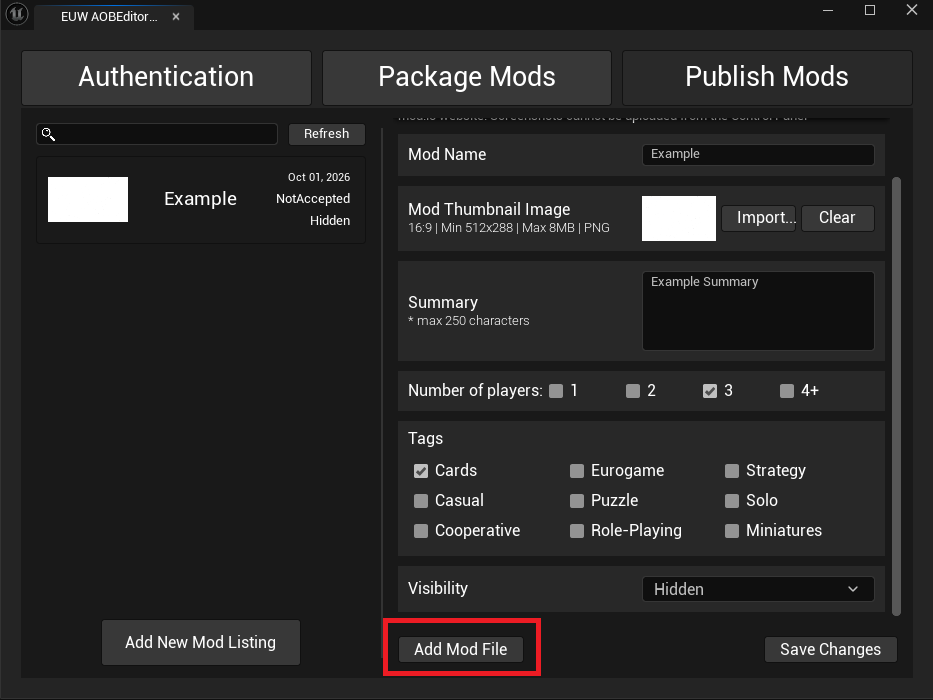
To upload your mod file, you need to fill in the following fields:
- Mod Root Directory: Specify the path to your workspace directory containing mod assets.
- Platform: Select the target platform(s) for this mod file.
- Version String: Provide a version identifier for this release.
- Changelog: Document changes or additions in this version.
- Set as Active Release: Determine whether this upload should be set as the current active release.
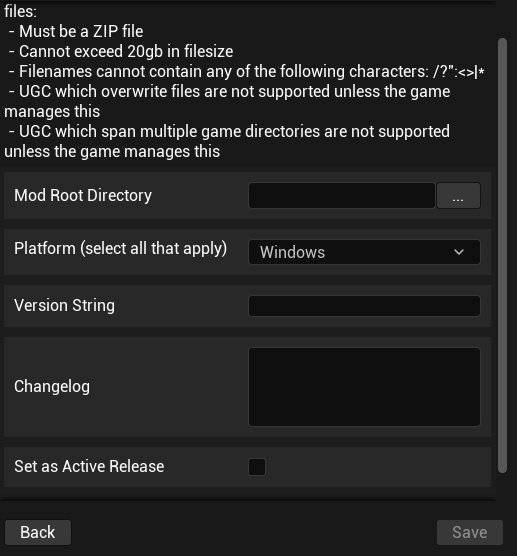
Once you have finished, click Save. Your mod will be available in the All On Board! app if its visibility is set to Public.
If you want your game’s screenshots to be displayed in All On Board!, go to this page: Screenshots guide