Out of Bounds
Out of Bounds is the system that fades the camera to black and teleports the player back to their seat when they attempt to enter areas they should not access, such as those beyond the modeled environment.
If you are making your game using the Game Creation Wizard, the Out of Bounds is already configured, but we recommend you tweaking when bringing your own environment to All On Board!. This guide explains how to configure it so it adapts to your environment.
Step 1 - Find the OBAreaActor
In the Outliner, look for an actor called BP_{Game ID}_OBAreaActor and click on it. You’ll see it contains a lot of big colliders inside it.
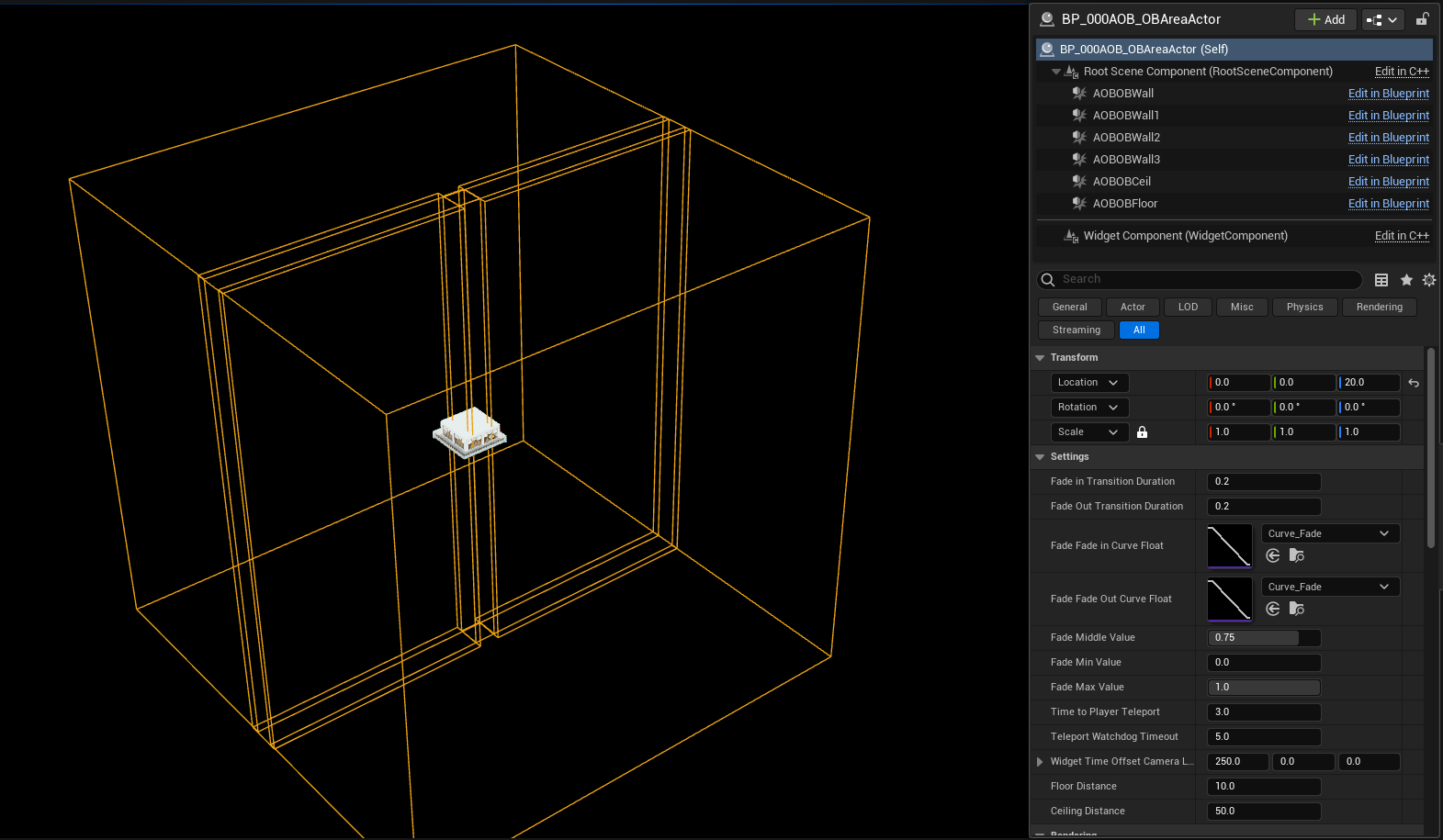
Step 2 - Change the boundaries
Click on the different components and change their location at will.
We recommend keeping the colliders large to prevent players from finding ways to escape the boundaries.
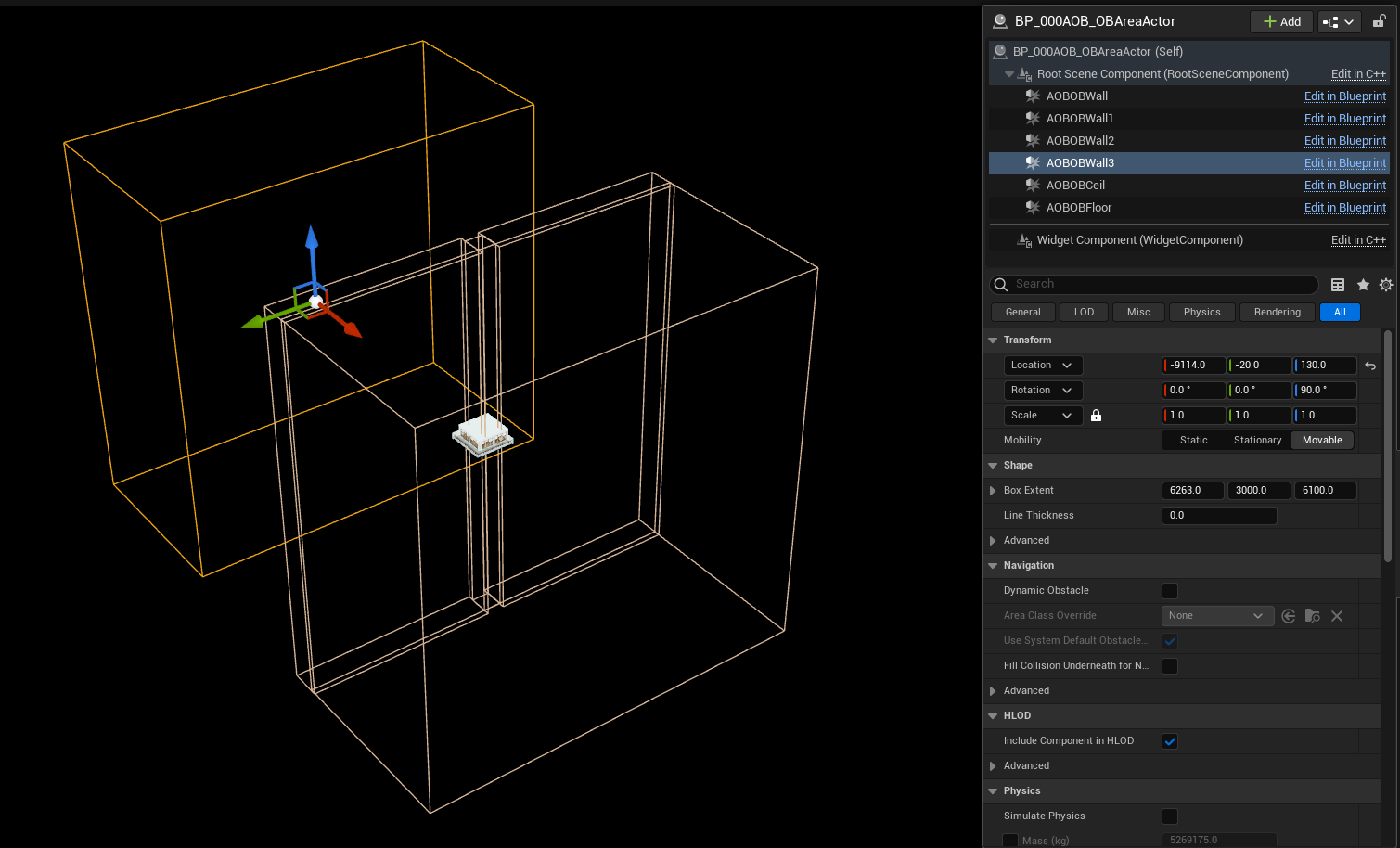
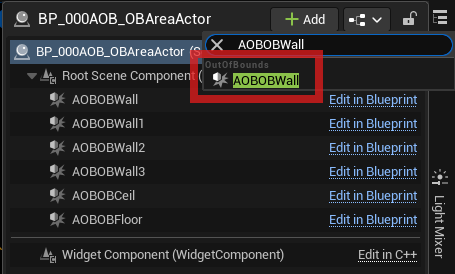
To add new ones, in the Details panel, press “Add” and look for AOBOBWall.
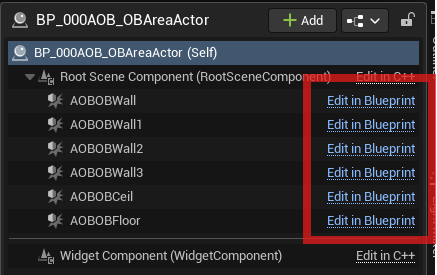
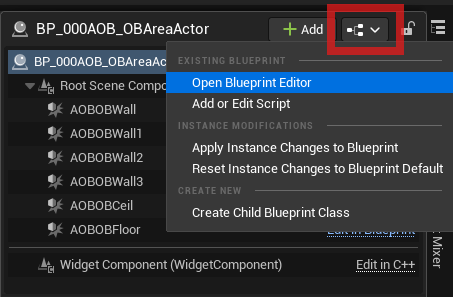
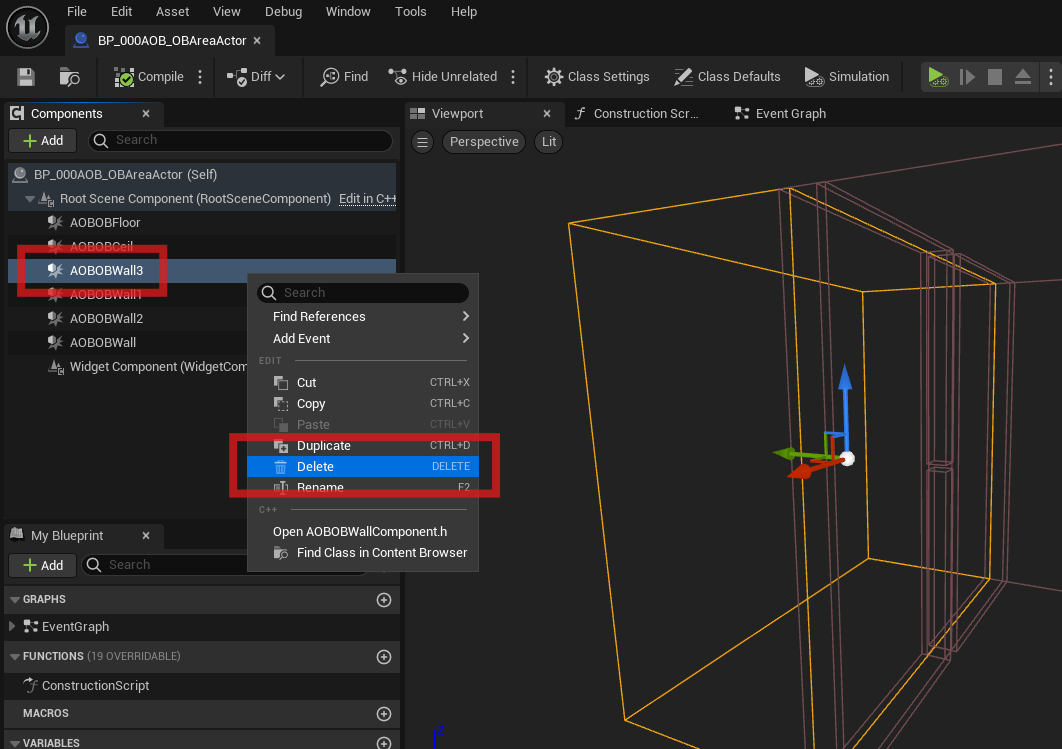
You can also delete existing colliders, but to do so, you must edit the Blueprint directly, which you can do by pressing “Edit in Blueprint” next to the colliders, by pressing “Open Blueprint Editor”, or by clicking on the asset inside the Content Browser.
Step 3 - Save your changes
Once you are happy with the new boundaries, press “Apply Instance Changes to Blueprint” to save your changes.
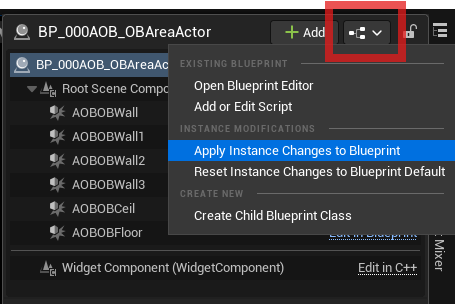
If you are editing the Blueprint directly, press “Save” instead.