Sound from Blueprint
Usually, the game elements in All on Board! bring sound variables that cover the main sonorization needs, but if you need to add a sound behavior not provided by a variable (check this information here: 6. Use an ID as a variable), you can design it from the Blueprint’s graph.
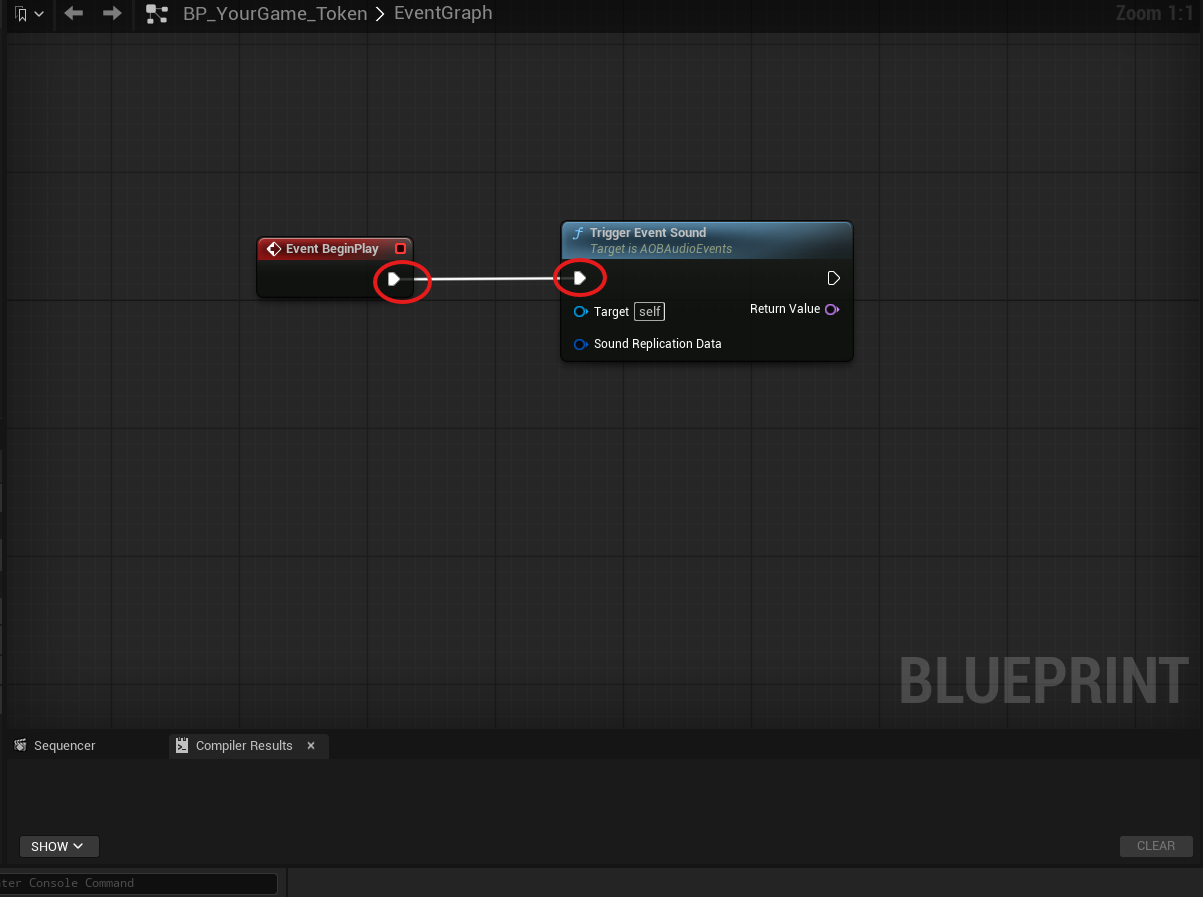
1. Trigger Event Sound
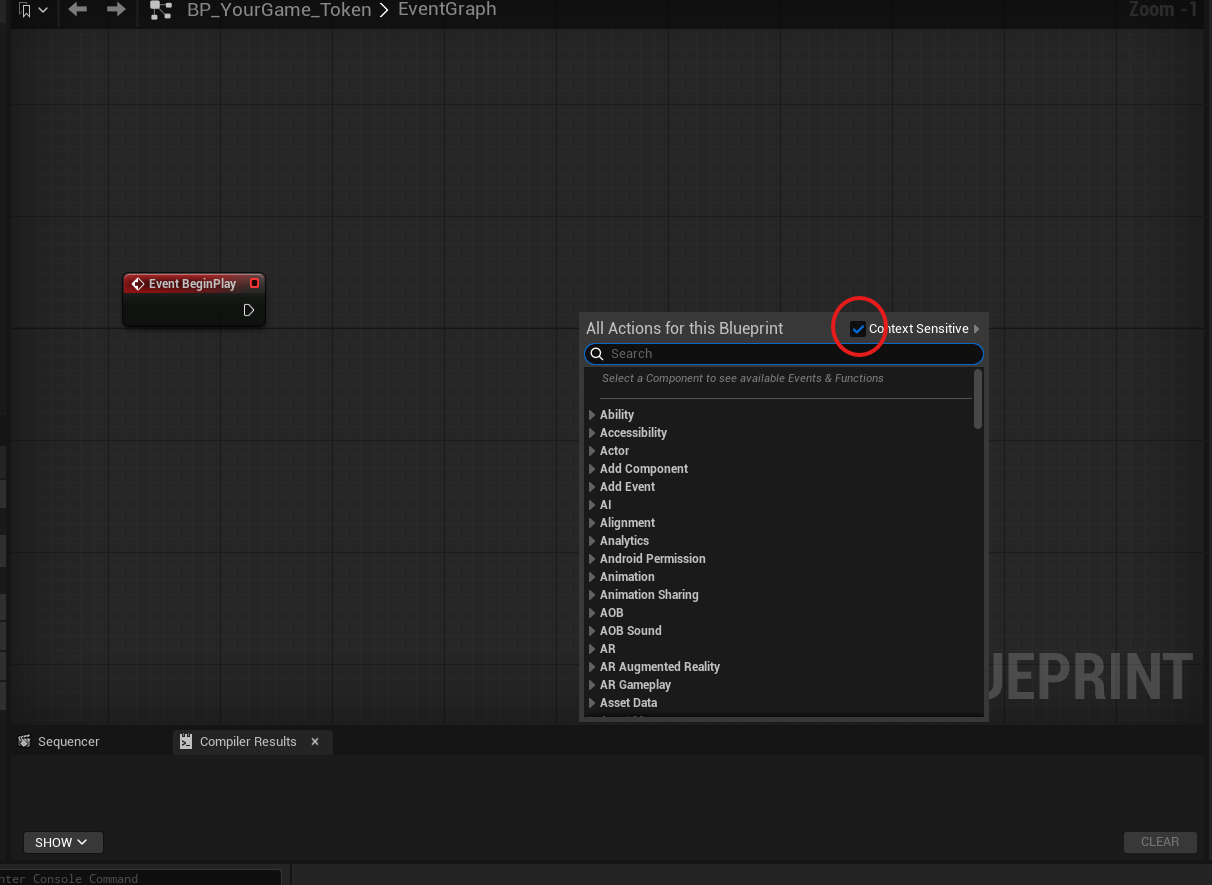
Right-click on the graph and, before typing anything, unmark the Context Sensitive checkbox so all the possible actions are visible.
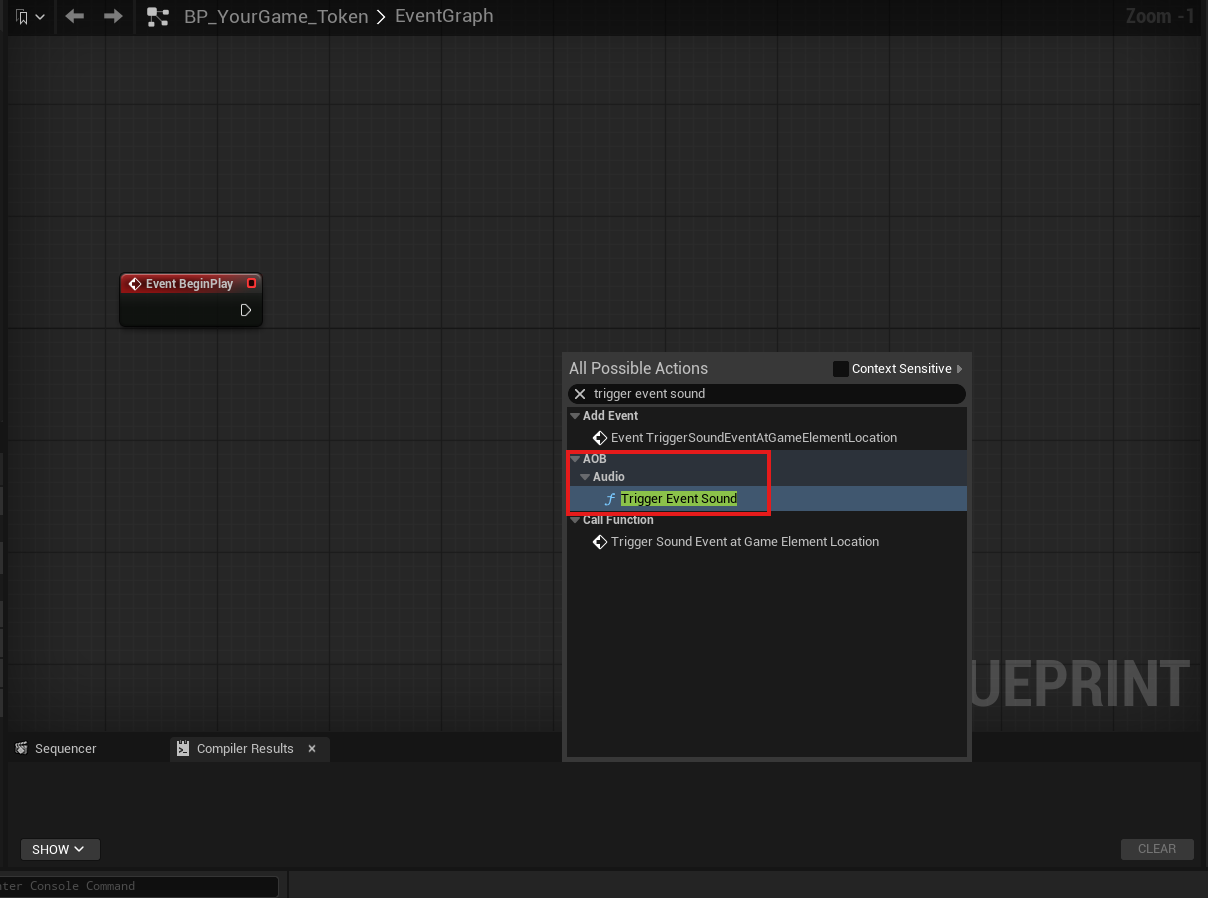
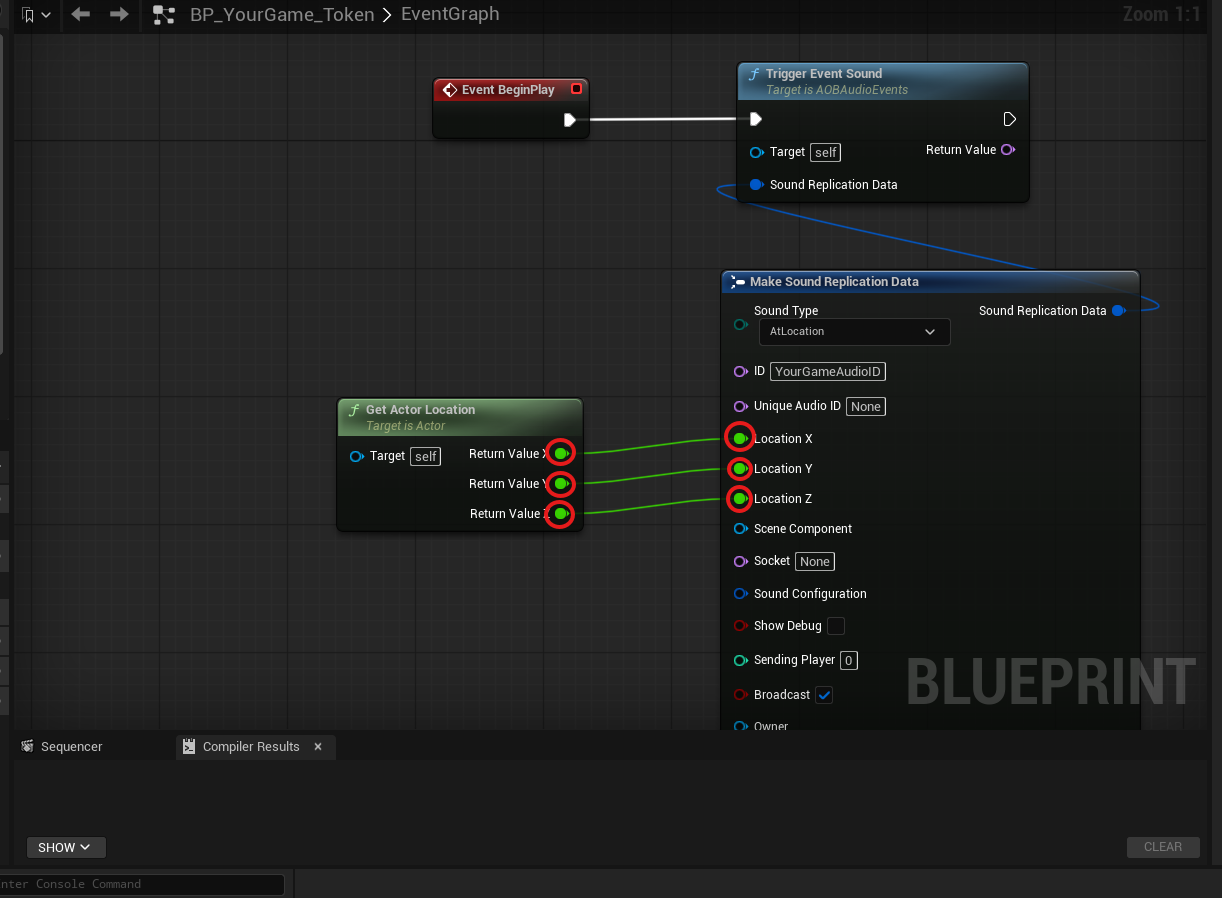
Now, find the Trigger Event Sound function, and connect its first exec pin to the desired event’s pin.
2. Make Sound Replication Data
You now have to set which audio will be executed by the function.
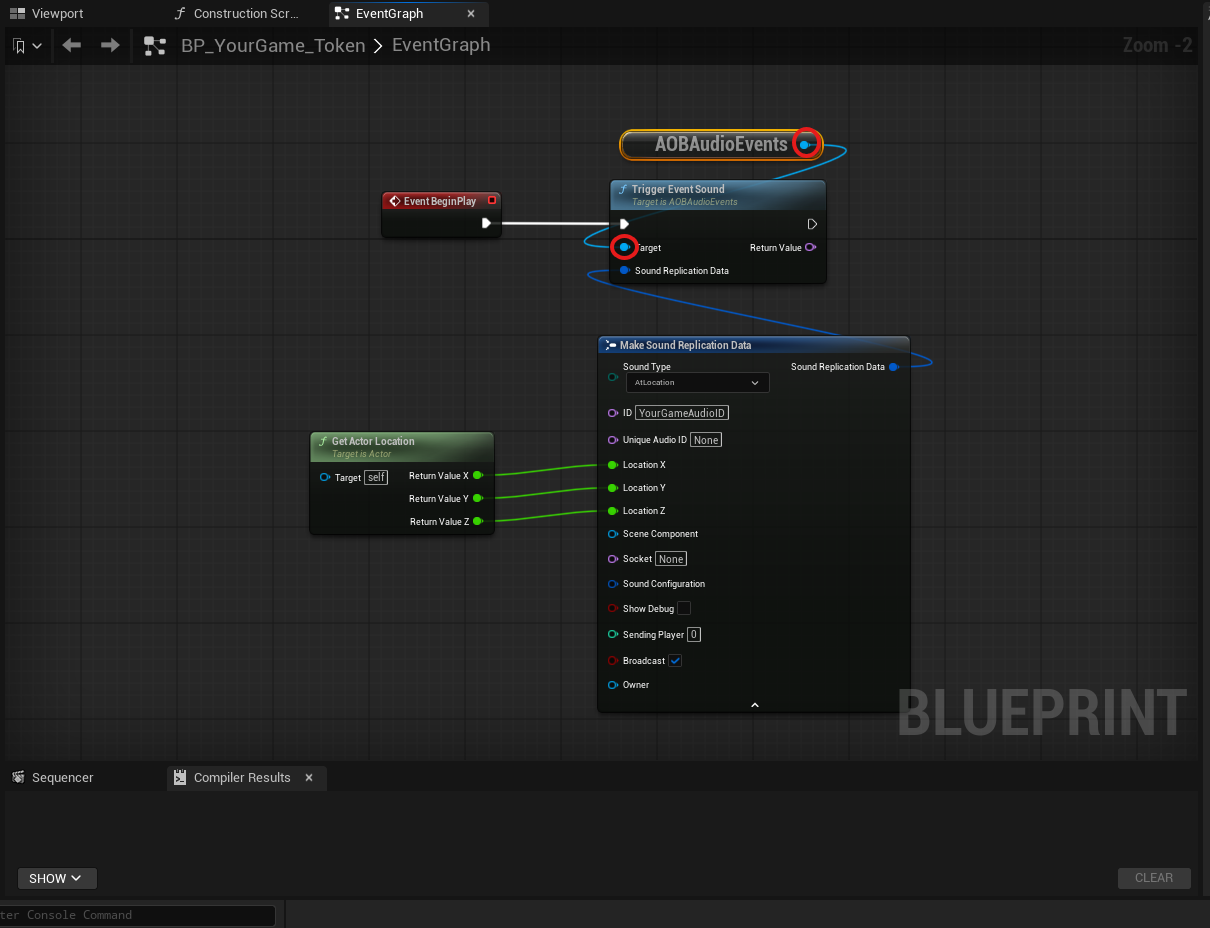
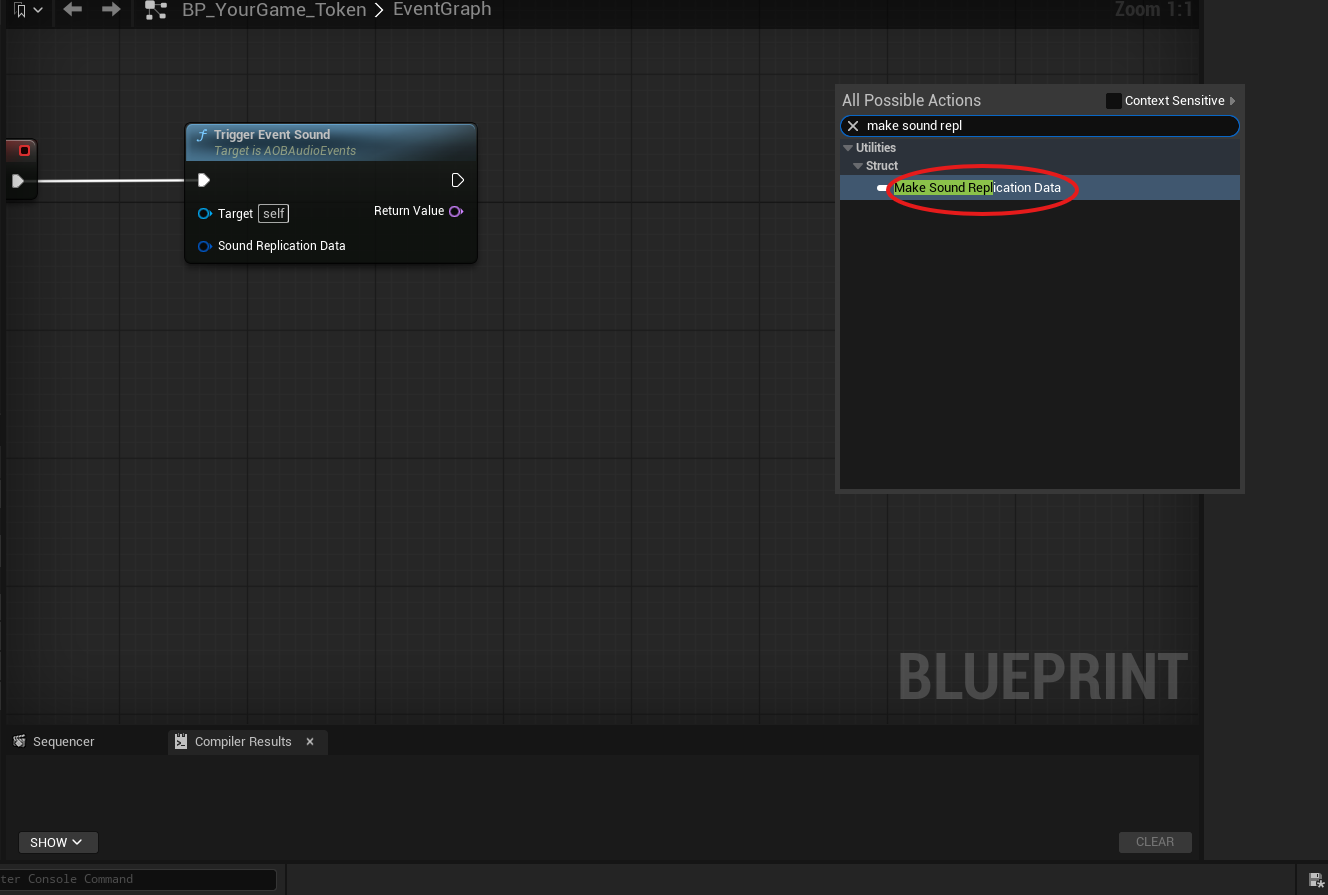
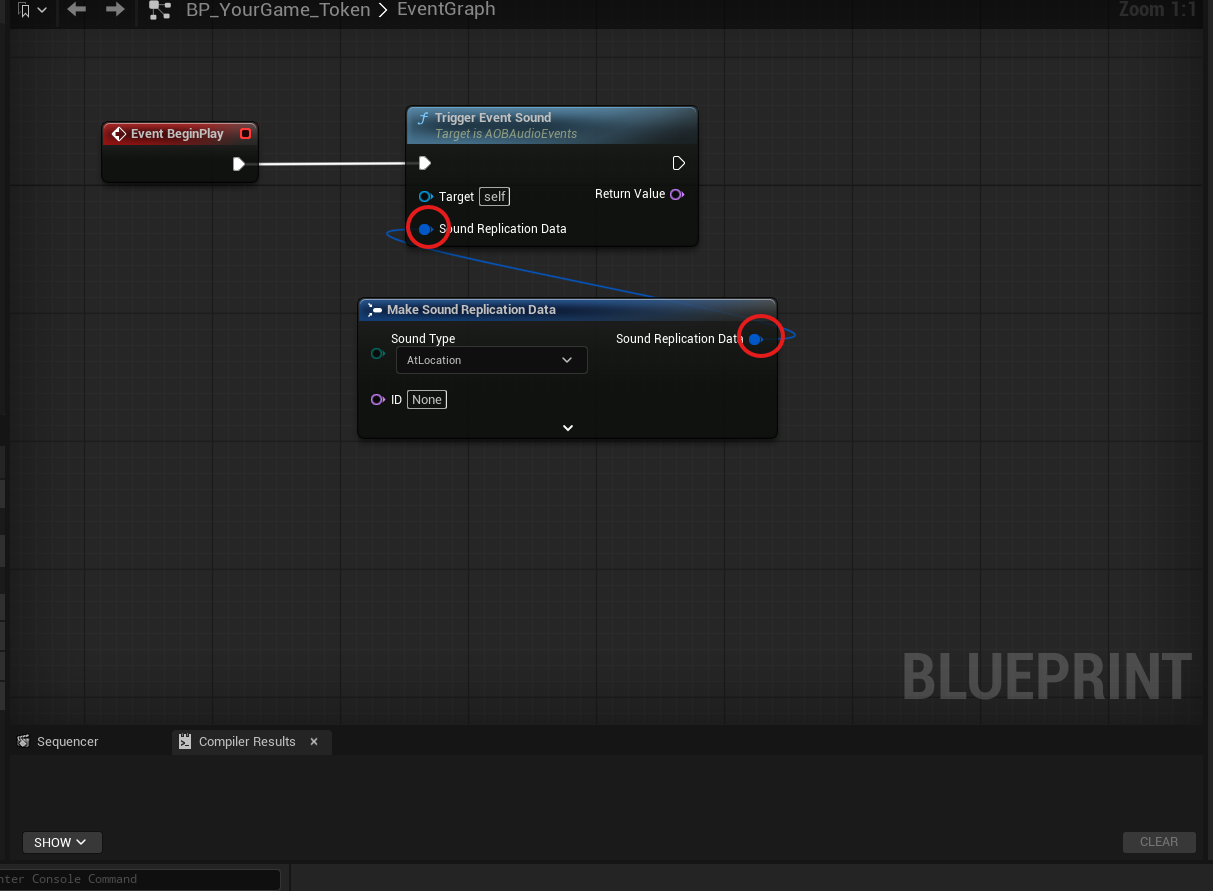
Right-click on the graph and search for the Make Sound Replication Data node, and connect its Sound Replication Data pin to the Trigger Event Sound node’s counterpart.
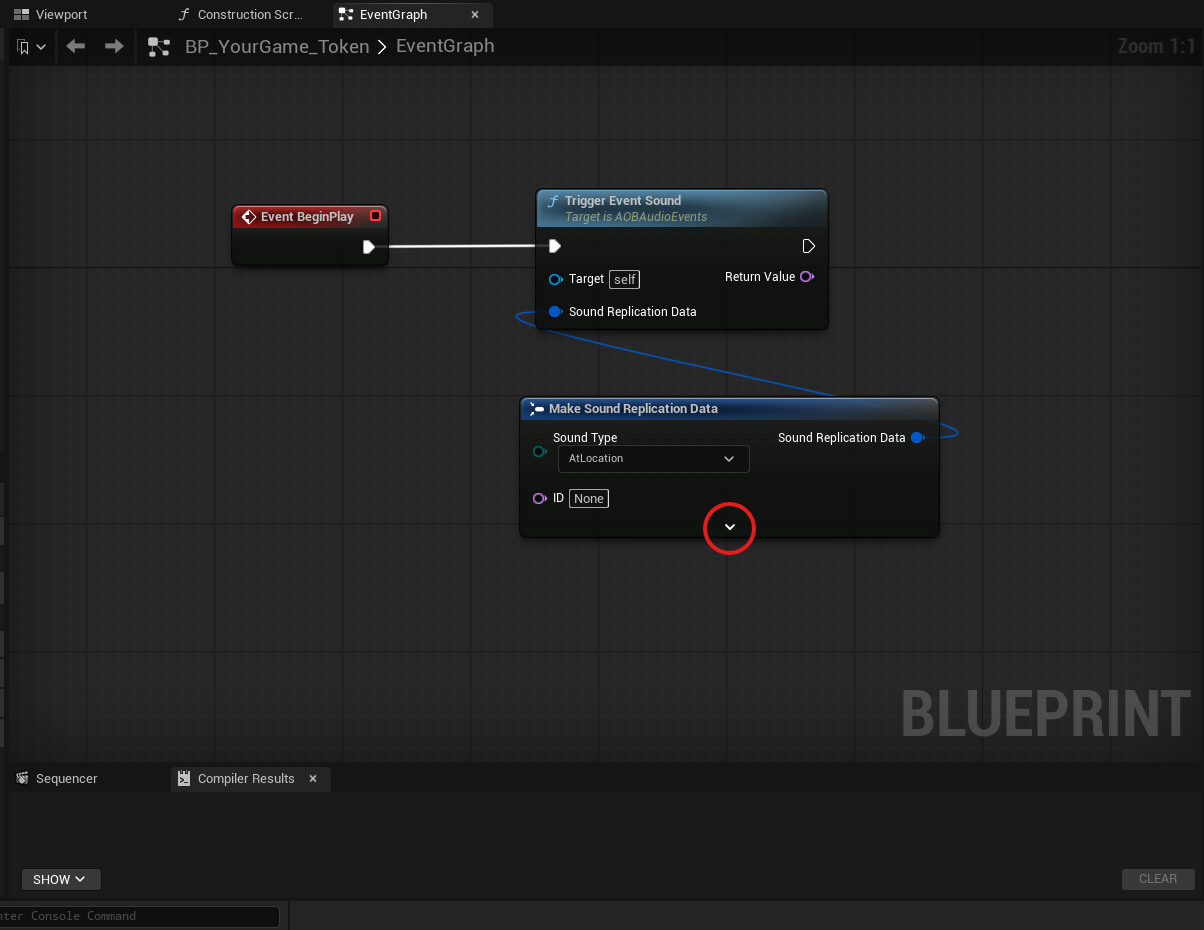
Extend the node by clicking on the arrow located at the bottom of the box to make all the configuration visible.
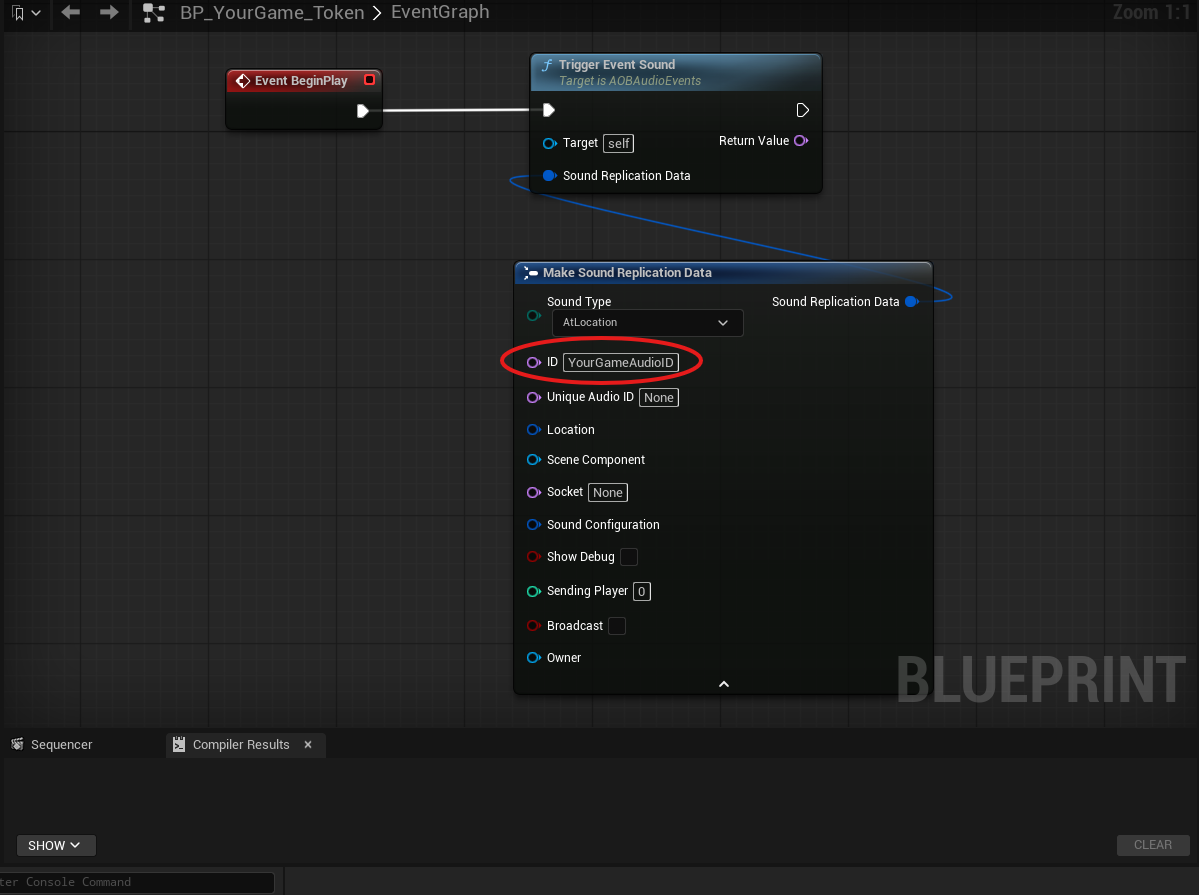
Fill the ID field with the Audio ID you want to be called, previously added to the corresponding Data Table. Check the information about Data Tables here: 4. Data Table
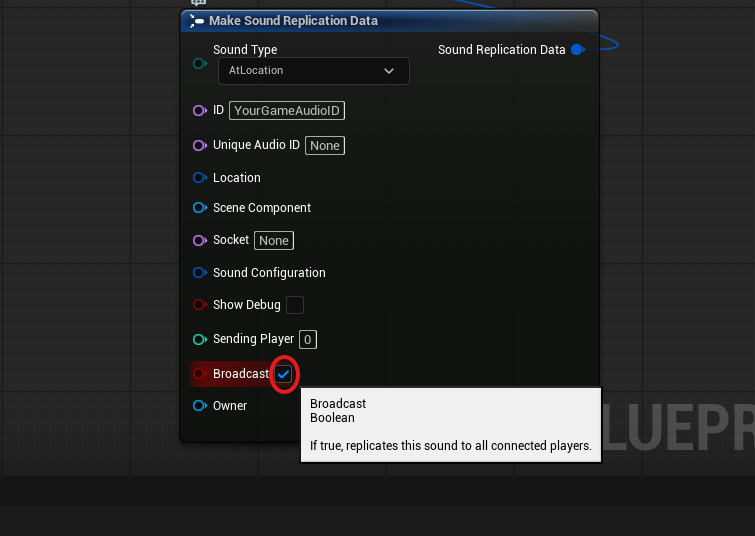
If you want your sound to be audible for every player in the room, mark the Broadcast checkbox.
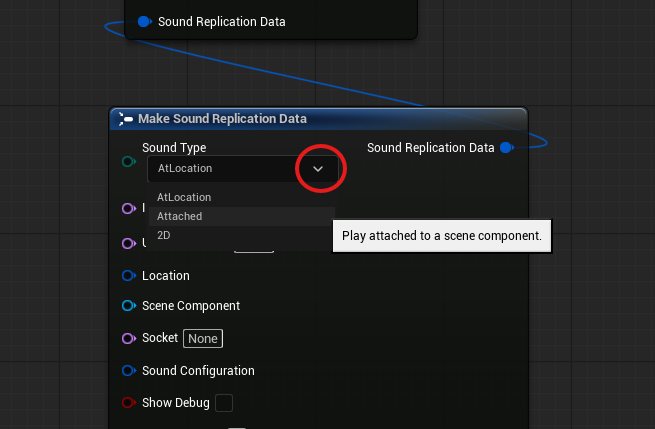
Also, choose whether you want the sound to be spatialized or 2D on the Sound Type displayable menu.
3. Get Actor Location
If you want your SFX to sound spatialized, you need to let the Function know the locations of the sound source.
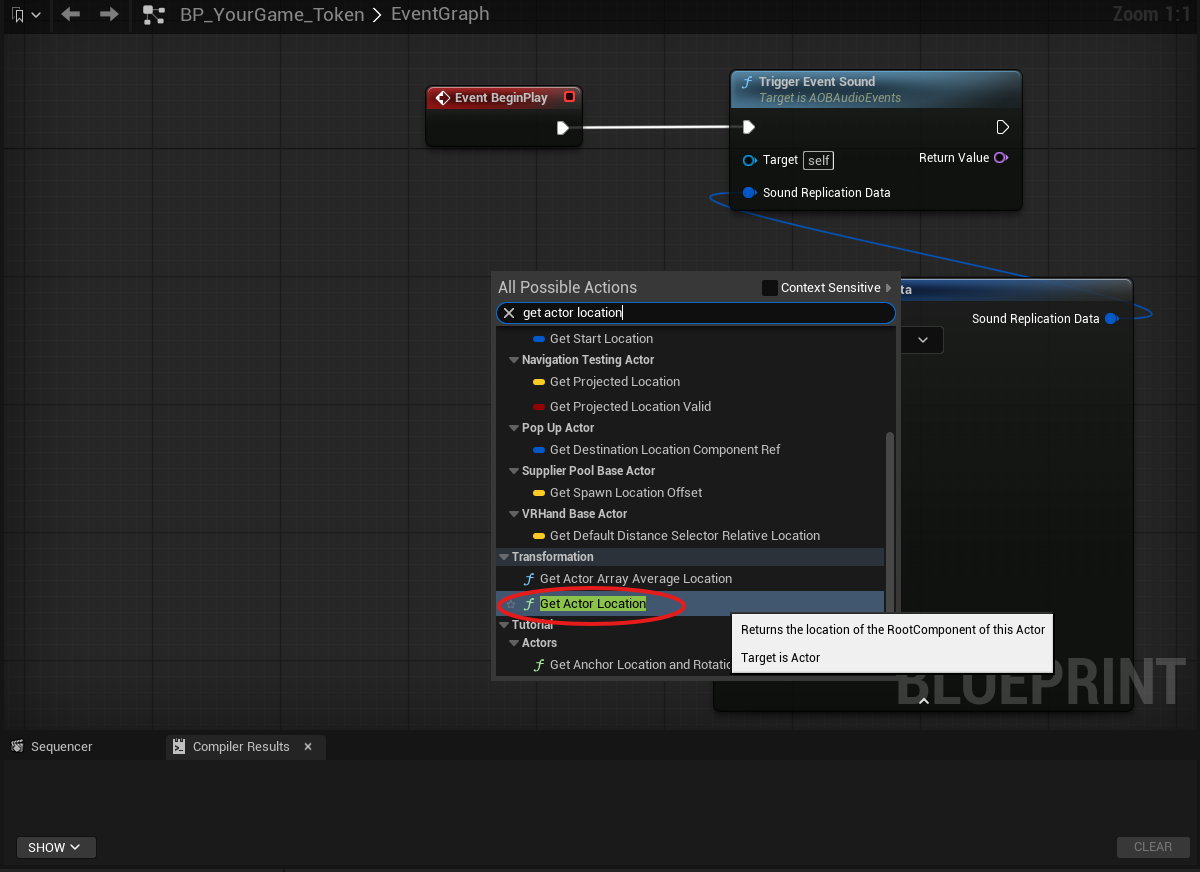
Right-click on the graph and look for the Get Actor Location function.
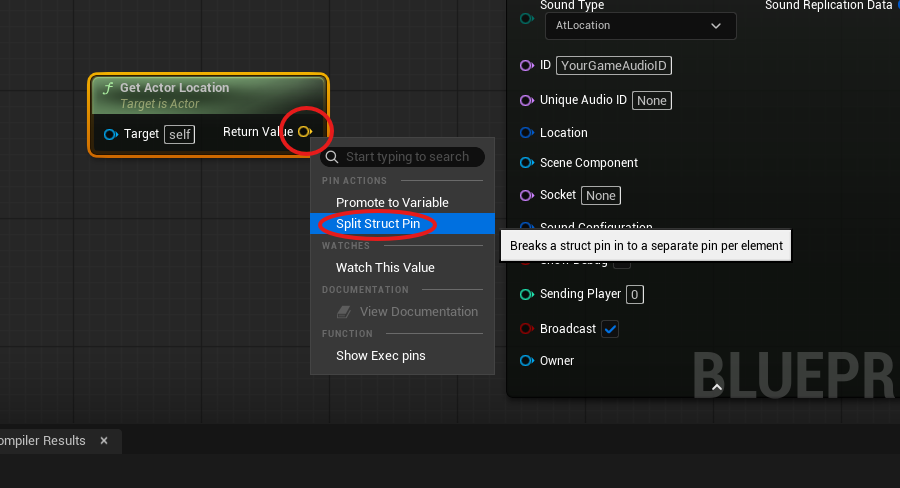
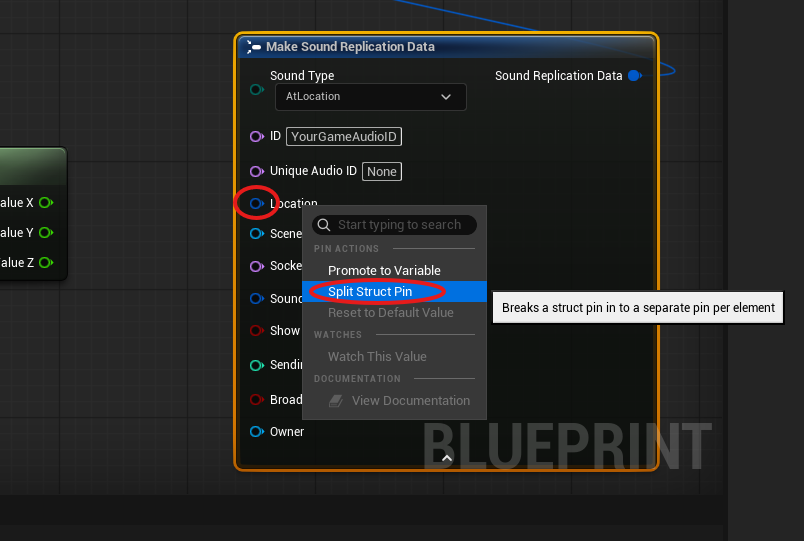
You need to split its Return Value pin to actually connect it to the Make Sound Replication Data node, so right-click on the pin and select Split Struct Pin. Do the same on the Location pin of the Make Sound Replication Data node, and connect the corresponding pins between the two nodes.
4. Audio Event Subsystem
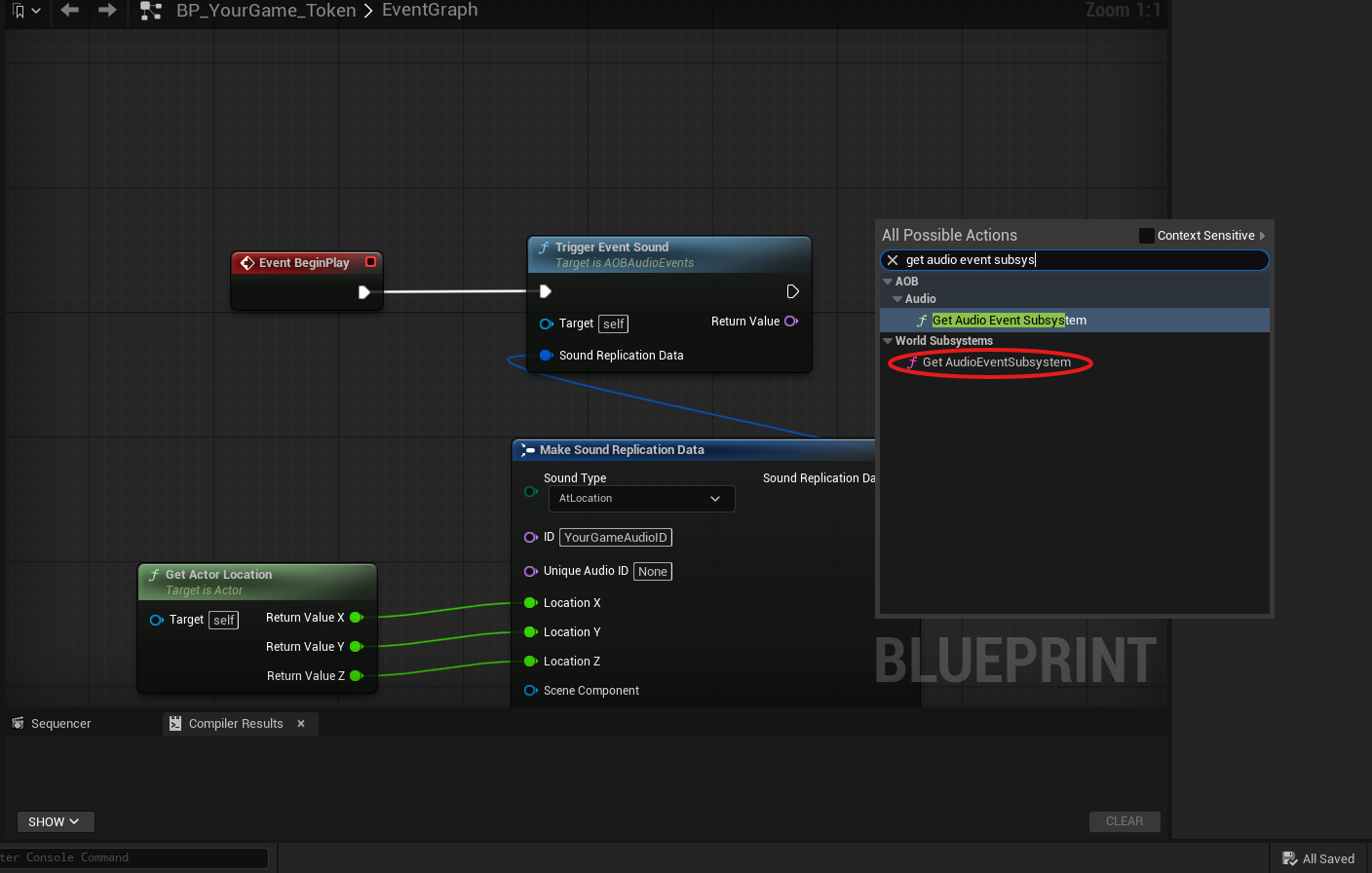
To have a Target for your Trigger Event Sound function, right-click on the graph and search “Get Audio Event Subsystem”, then connect its pin to the Target pin of the Trigger Event Sound node.