Floating Player Area
This guide explains how to create a Floating Player Area with All On Board! Mod Kit.
The Floating Player Area is a game element designed as a personal space for each player to store and organize game elements such as cards or tokens.
Step 1 - Create Floating Player Area Blueprint
There are two ways to do this:
Using All On Board! Mod Kit Toolbar
Select our toolbar and hover over All On Board!, then select Floating Player Area.
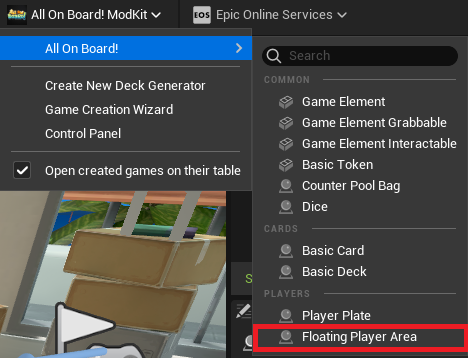
Next, select the folder where you want to save the Floating Player Area Blueprint and give it a name if you prefer a different name than the default name.
Using the Pick Parent Class Dialog
Right-click on an empty space in the folder where you want to create your floating player area. The Add New menu will open. Then, hover over All On Board! and select Blueprint Class (All On Board!).
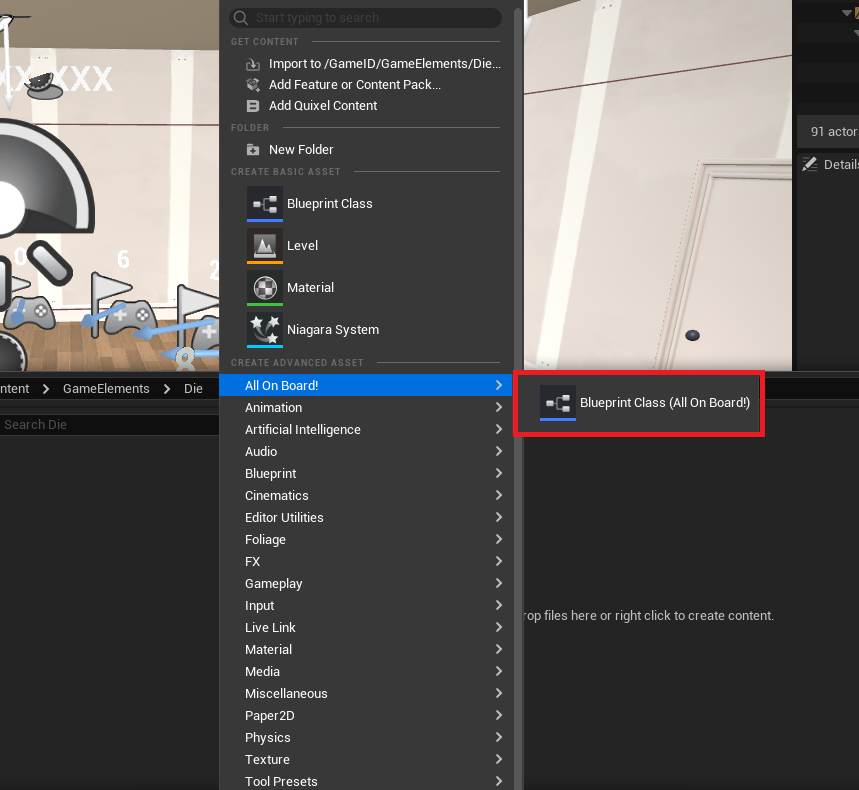
When the Pick Parent Class dialog opens, select Floating Player Area.
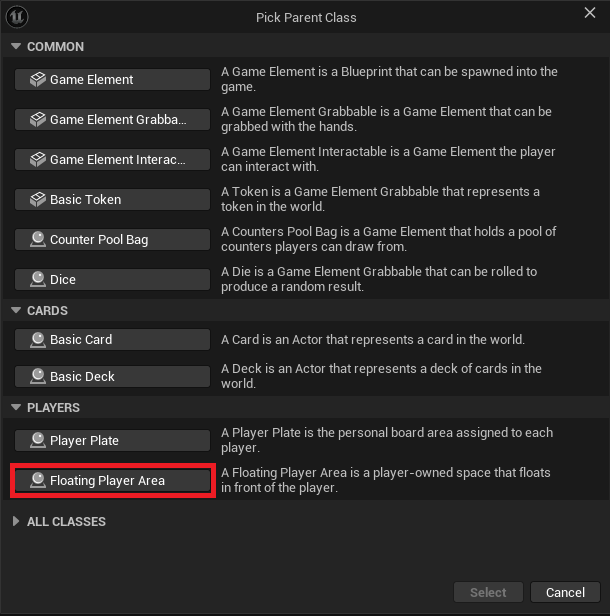
Next, give the Blueprint a name if you prefer a different name than the default name.
Step 2 - Register the Blueprint in the Data Table
Once you have completed the previous step, regardless of which method you used, a window will automatically open to register your new Player Plate in the Game Element Index Data Table. This table contains a list of all the objects that will be used in your game.
The correct Data Table is selected automatically, but make sure to check it just in case. For example, if your Game ID is "Example", the Data Table will be named DT_Example_GameElementIndexGeneral.
Then, enter the name you want your floating player area to have in the table and click Register.
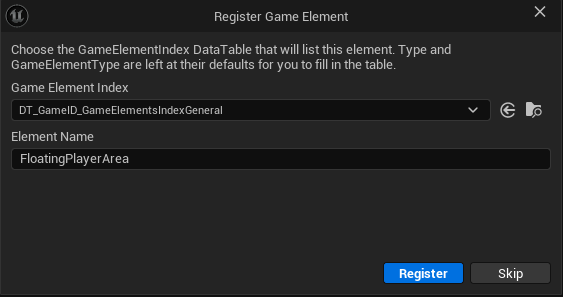
Finally, your Floating Player Area will be created.
Step 3 - Configure your Floating Player Area
TThe Floating Player Area has several components that you may need to readjust when changing, for example, its mesh.
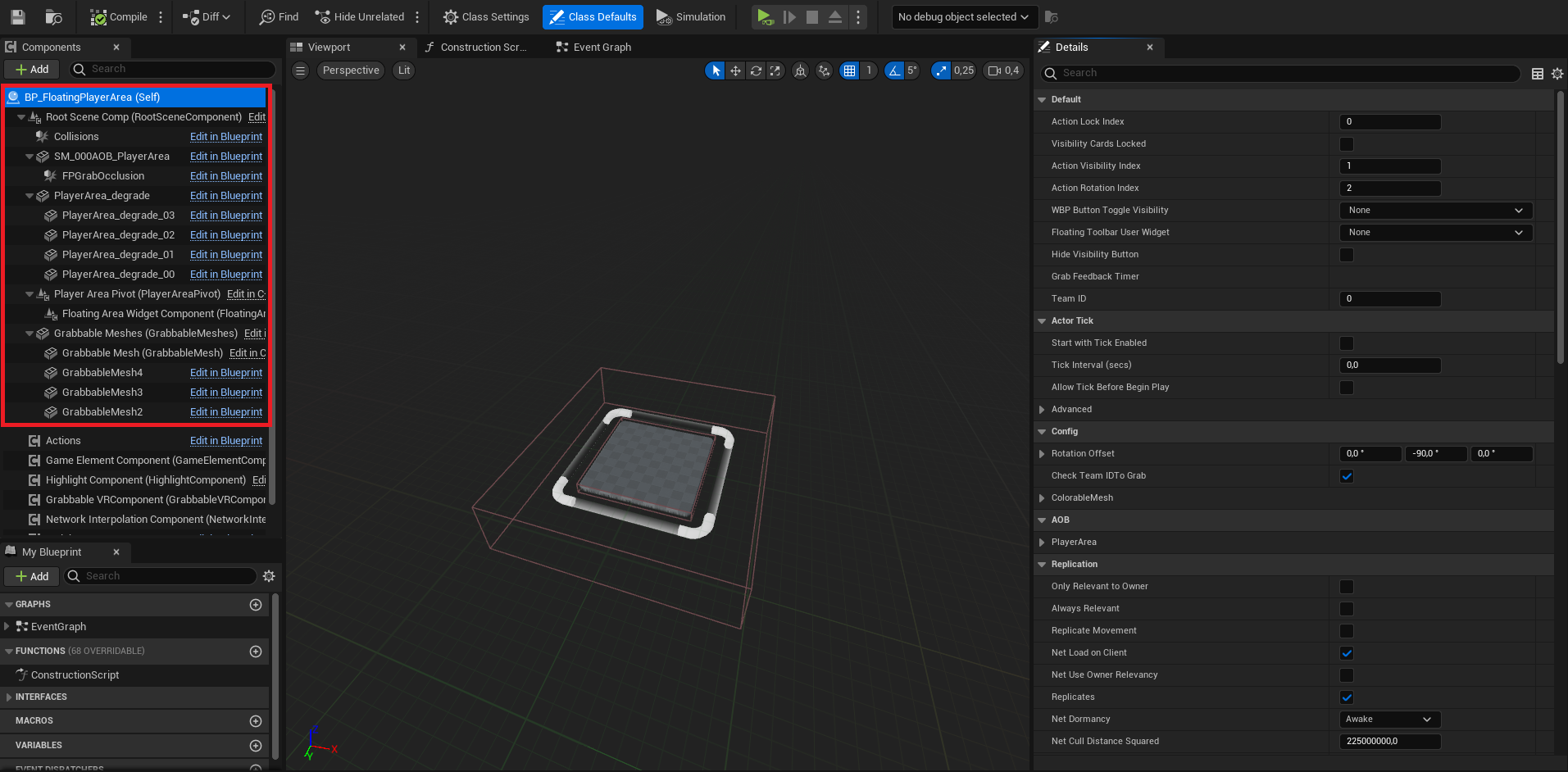
-
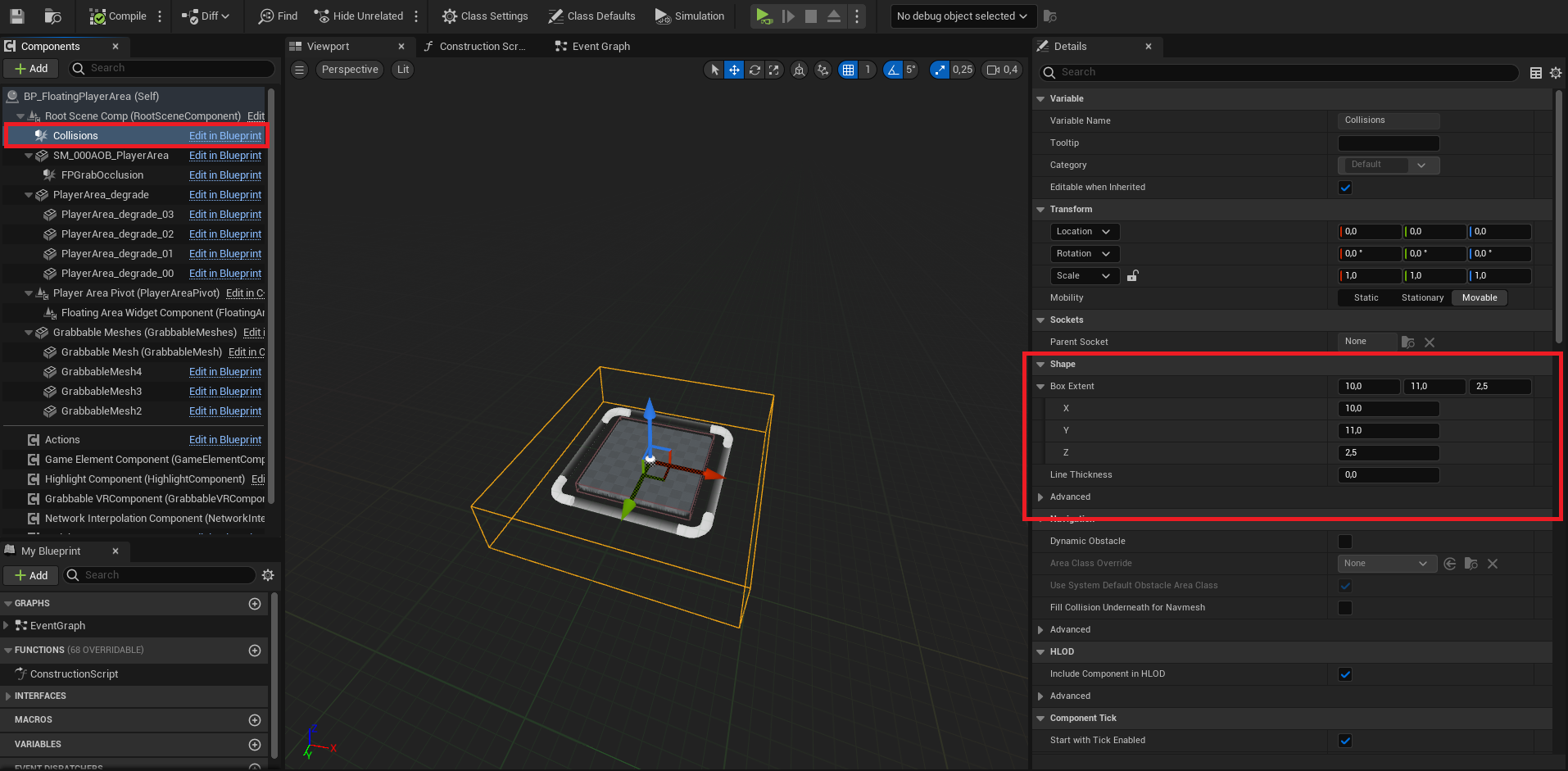
Collisions: This is a box collision that detects when the player's hand enters its area. When the hand is within this range, the Grabbable Meshes and Player Area Degrade are displayed, allowing the player to interact with them. In other words, it defines how close the player's hand needs to be for the Grabbable Meshes and Player Area Degrade to appear.
When resizing it, remember to adjust its size from the Shape section.
-
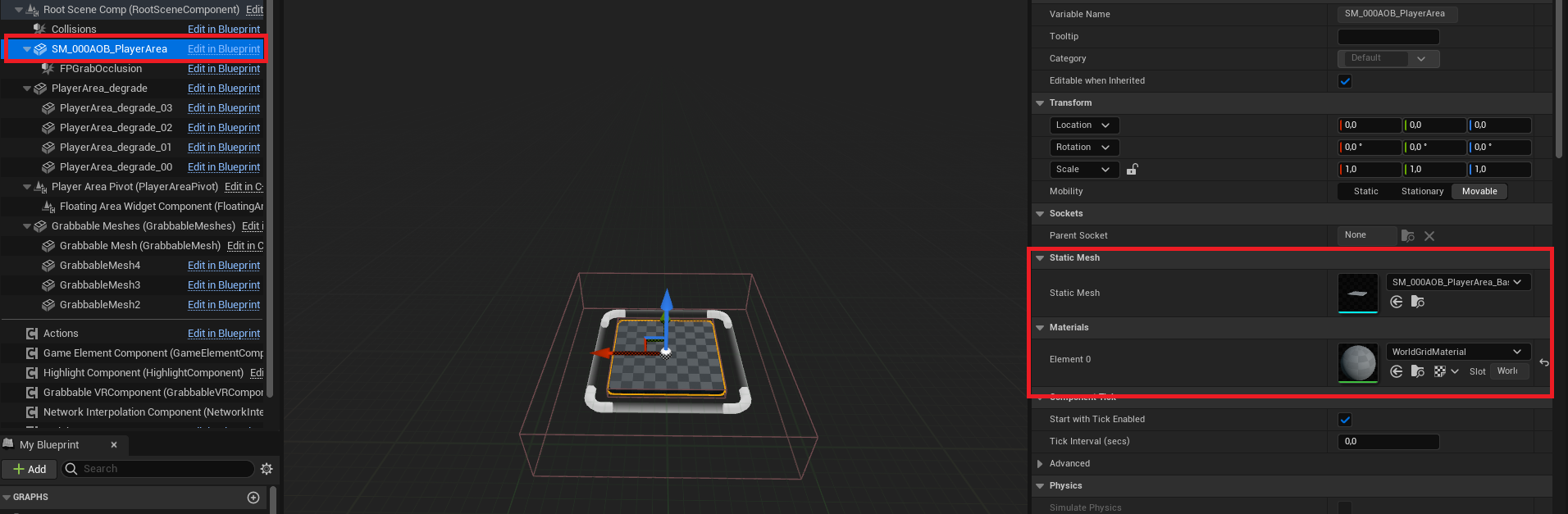
SM_000AOB_PlayerArea: This is the mesh of the Player Area, which you can change or resize.-
FPGrabOcclusion: This is a simple box collision that you can use if your Player Area mesh does not have one.
-
-
PlayerArea_degrade: This is the static mesh that is displayed around the border of the Floating Player Area when the Collision detects the player's hand. -
Floating Area Widget Component: This is the widget that contains all the Player Area elements used to lock their position and make the Player Area follow the player.
-
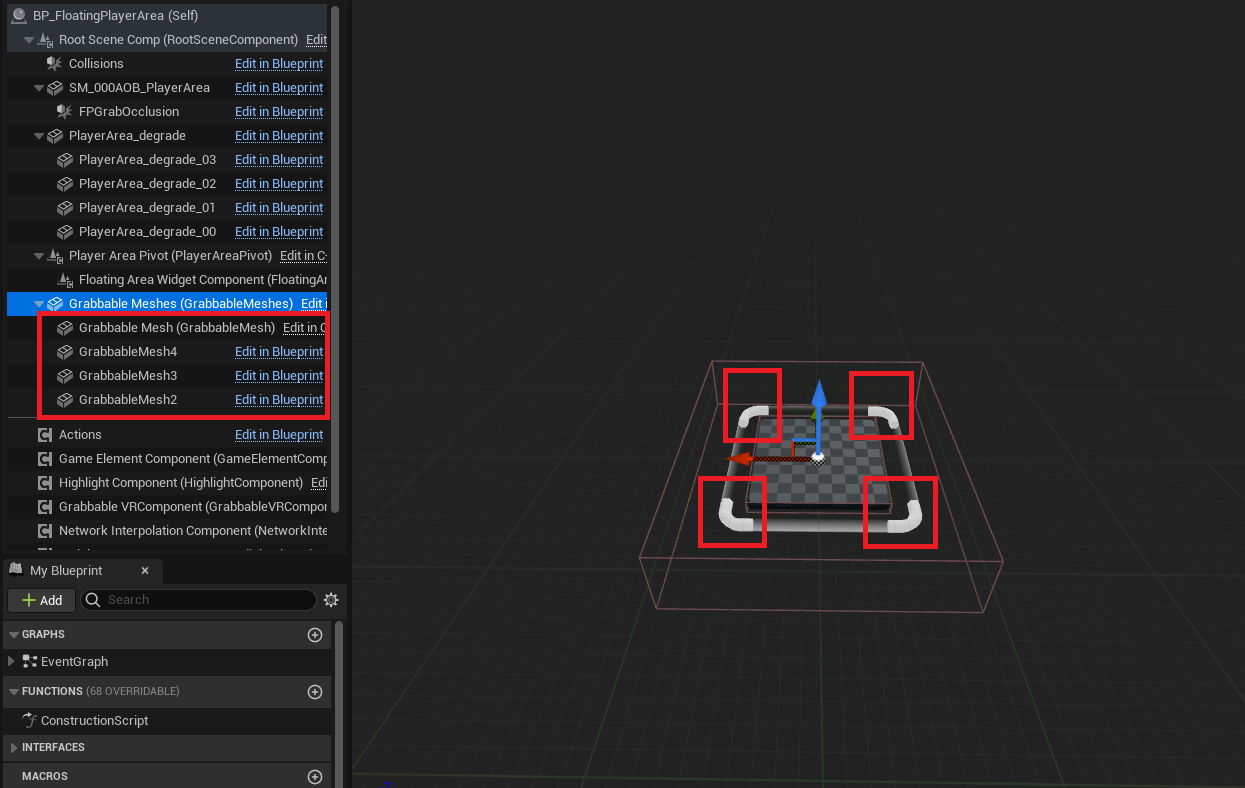
Grabbable Meshes: These are the static meshes that the player uses to grab and move the Floating Player Area.
Among the other components, you will find one called GrabbableVRComponent. If you want to learn more about this component, go here: Grabbable VR
If you want to place floating player area on the table, go to this page: Deploying elements