Token Creation Wizard
This tool helps you create tokens for All On Board!
If you want to create a token step-by-step, go here: Create a Token
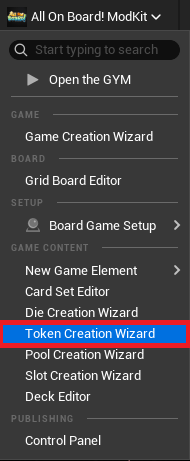
To open the Token Creation Wizard click it on the Alll On Board! Mod Kit ToolBar.
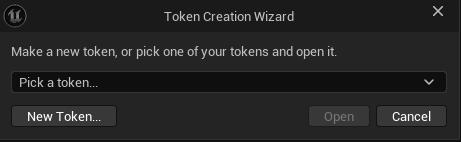
In the following window, you can choose whether to create a new token or edit an existing one.
If you click New Token, you will need to select the mod you are creating the token for and enter its ID. You can also choose to create it based on an existing token.
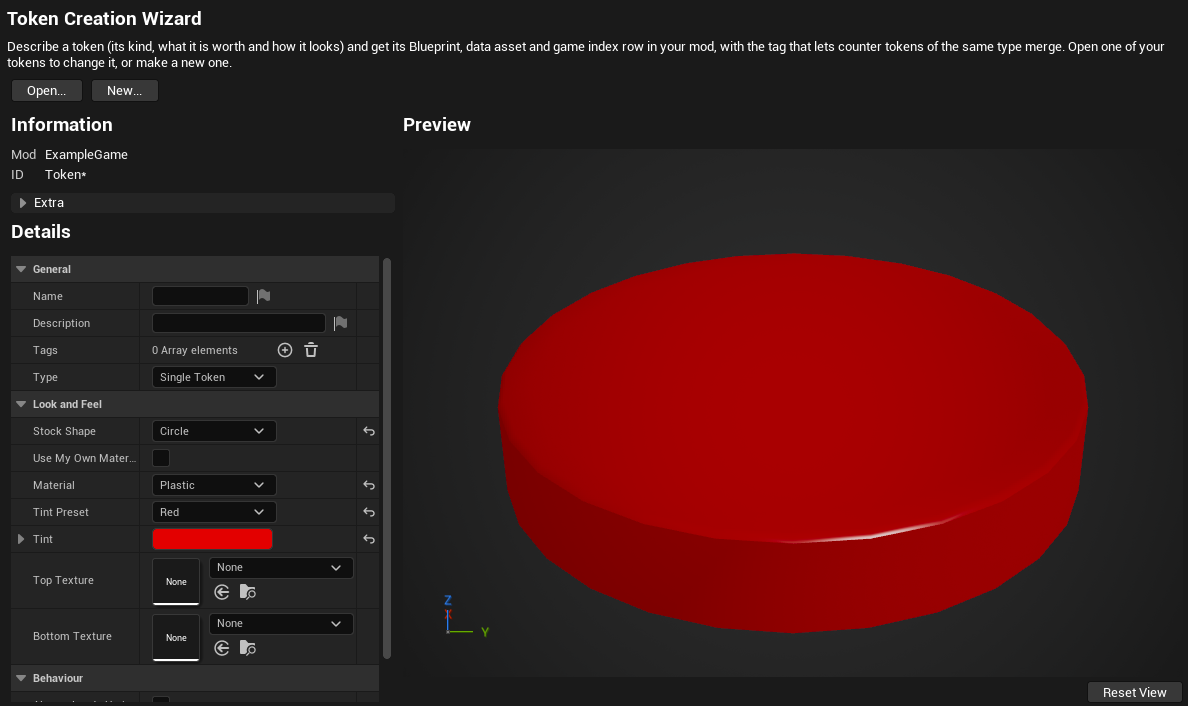
Once you open the Token Creation Wizard, you will find the following sections:
Information
- Mod: The mod your token belongs to.
- ID: The Game Element ID of your token. This is the name you will use to find it in the Game Setup and reference it in Blueprints whenever you need to identify or use this Game Element.
- Extra: In this section, you can find the folder path where your token is stored, its Game Element Data Asset, its Blueprint (in case you want to add custom functionality or programming), and the token's Parent Class.
Details
General
- Name: Enter the name of your token.
- Description: Add a description of your token. For example: "Token for Player Three".
- Tags: Set the Actor Tag for your token. This is useful when working with die slottables.
- Type: Select between single token or counter token.
- Single Token: A token that can only be grabbed one at a time and never merges with other tokens. Each piece remains separate, even when you have several of the same type.
- Counter Token: A token that allows you to grab multiple pieces at once. Tokens of the same or different types can merge into a single stack, keeping track of the total count. When the number of tokens exceeds a certain threshold, they are displayed as a bag. This is useful for items such as coins or damage counters.
- Value Per Piece: Determines the value of each individual piece when spawned or handed out by a supply. The values of merged pieces are added together.
- Merge With: Select another Counter Token to merge with this one. The selected token will be added to the merge group, allowing both token types to stack together. A Counter Token can also merge with copies of itself.
Look and Feel
- Stock Shape: Determines the shape of the token mesh. You can choose from several options, such as Circle, Square, Octagon, Gem, Coin, and more.
- Use My Own Material: Select this option if you want to use a custom material for your token.
- Material: Select the material for your token. The available materials depend on the selected Stock Shape. You can also use your own textures to further customize its appearance.
- Tint Preset: Choose a preset pair of tints from the available options for the selected material.
- Tint: Set the color of the token.
- Shine: If you select Coin as the Stock Shape, you can also customize the color of the token's shine.
- Top Texture: The texture displayed on the top (or front) of the token.
- Bottom Texture: The texture displayed on the bottom (or back) of the token.
Visual: Bag
- Use My Own Bag: Enable this option if you want to use a mesh you already have.
- Bag Main Color: Sets the colour of the bag.
- Bag Secondary Color: Sets the colour of the bag's drawstring.
Behaviour
- Always Lands Upright: If enabled, the token will always land upright when a player releases it and will not tip over afterwards.
At the bottom of the Details section, you will find a Delete button that allows you to delete the die.
Preview
In this section, you can preview your token. You can also find an additional button in the bottom-right corner of the window.
- Reset View: Click this button to reset the tokens's preview camera.
Finally, at the bottom of the window, you will find the following buttons:
- Make a Pool: Opens the Pool Creation Wizard, allowing you to create a bag for storing and retrieving this token.
- Close: Closes the Token Creation Wizard.
- Save as New Token: Saves the current token configuration as a new token, keeping the original unchanged.
- Modify Token / Save Token: Saves the token or applies the changes you have made to the existing token.